Scheduling Inspections

The City of Menlo park only accepts online inspection requests via the "Menlo Park Inspection Request" app or the City's Accela Citizen Access Portal (ACA).

It is the scheduler's responsibility to schedule enough inspection time to allow the City Building Inspector time to complete their inspection(s). 
Please be aware that 1 scheduled trade/item equals a 15-minute inspection. If more time is needed, either schedule the same trade item or multiple trade items to equate the total time needed. For example, if the inspection being called for is ‘Underfloor Roughs’ then schedule underfloor frame, underfloor plumbing, underfloor mechanical to achieve a 45-minute inspection(s).

It is important to note that due to inspection demand, the inspector will only stay on-site for the amount of time scheduled. 

Please consult with the City Building Inspector if there is a question as to how much time will be needed.

Schedule an inspection via mobile app or using ACA portal

A Building inspection can be scheduled using either the mobile app called "Menlo Park Inspection Request" or via the City's Accela Citizen Access Portal (ACA).

Schedule an inspection via the mobile app 

The "Menlo Park Inspection Request" app, which is available on the App Store and Google Play, allows contractors and homeowners to request inspections for their building permits on their phone, tablet or computer. The difference between the two scheduling options are:

  • The app allows inspections to be scheduled by day only; it does not provide an option to choose a morning or afternoon time slot.
  • To find your scheduled information, please call (650) 330-6767 before 9 AM the morning of your inspection date.
  • If you require a specific day and/or time, do not use the mobile app, use the online permit portal Accela Citizen Access Portal (ACA) to schedule your inspection, instead.

How to schedule an inspection using the ACA online permit portal

To request an inspection for issued building permits online via the Accela Citizen Access Portal (ACA) users are not required to be registered or logged in, however, it is recommended as it allows the user to more quickly locate associated records. Click on one of the tabs below for either the written steps to request an inspection or the written steps with ACA screen shots.


Written Steps

  1. Open the Accela Citizen Access Portal (ACA) webpage.
  2. Click on the "Building" header.
  3. Under "General Search" tab, enter the full record number (for example, BLD2026-00012), then scroll down to the bottom of the page to click on the "Search" button.
  4. Once the record opens, click on the "Record Info" dropdown list, select "Inspections".
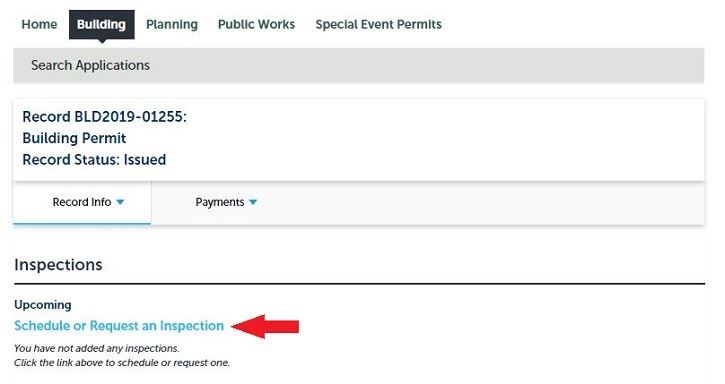
  5. Then click "Schedule or Request an Inspection".
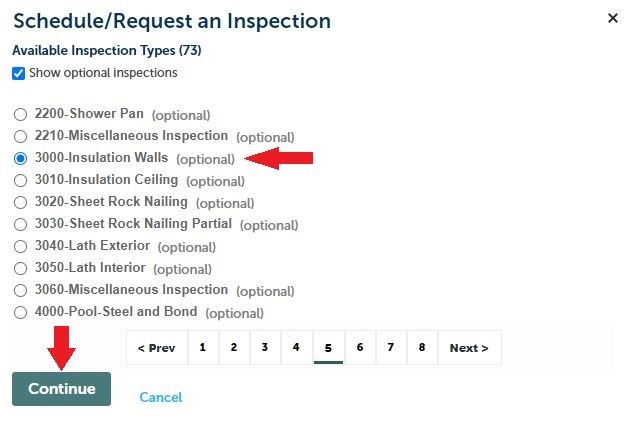
  6. Choose the appropriate inspection type (browse the eight pages of available inspection types), then click "Continue".
  7. Select an available date and time, then click "Continue".
    (Note: If your preferred date or time is unavailable (not selectable), choose a different available date and/or time.)
  8. On the "Location and Contact" screen, provide the contact details for the person who will be available on-site at the scheduled time of the inspection, click "Continue".
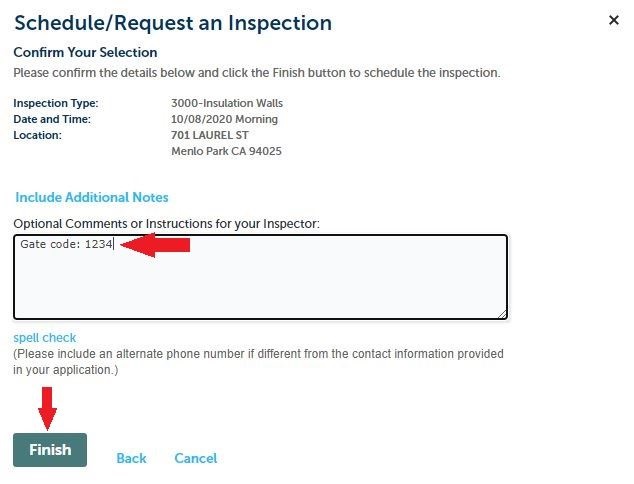
  9. On the last page, click on the blue text of the paragraph that starts with "Provide additional notes..." to open a comment box. Enter any additional comments or instructions. When done, click "Finish".

Steps with Screen Shots

Step #1 - Open the Accela Citizen Access Portal (ACA) webpage.

Inspection Scheduling: My Records

  •  Not logged in or logged in not already linked with the record.

Inspection Scheduling: Home Page (not logged in)

  • Search on the full record number (including zeros, if applicable) and record type:

Inspection Scheduling: Record Search

  •  Once you are on the record page, select Record Info/Inspections:

Inspection Scheduling: Record Page

Step #2 - On the Inspections sub-page, click the Schedule or Request an Inspection link:

Inspection Scheduling: Request

Step #3 - Select the particular inspection desired:

Inspection Scheduling: Type Request

Step #4 - Select the date and time window (morning/afternoon) for your request:
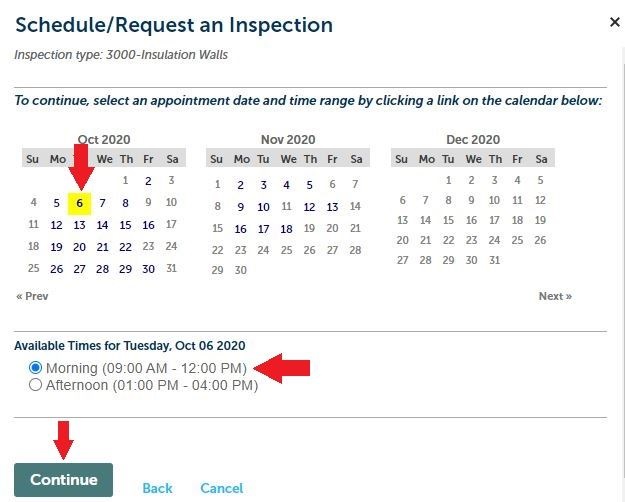
Inspection Scheduling: Date/Time Request

  • If the selected window is full, you will see this error message, letting you know the next available time slot:

Inspection Scheduling: Booking Conflict

  • If the window has available inspection requests, you will be able to proceed. At the final step, you may enter specific notes/requests (e.g., gate code or dog warning):

Inspection Scheduling: Finish

Step #5 - Click on the "Finish" tab.

Contact us

Building permits and general questions
650-330-6704
Email 

Inspection questions
Schedule online or 650-330-6767

Alternate Fridays closed